In the world of cloud-native development, a bloated Docker image is like a heavy suitcase: it slows down your CI/CD pipelines, hogs storage, and makes deployments a slog.
Optimizing your images isn’t just about being “tidy”—it’s about speed, cost-efficiency, and security.
The Tiffin Box Analogy 🍱
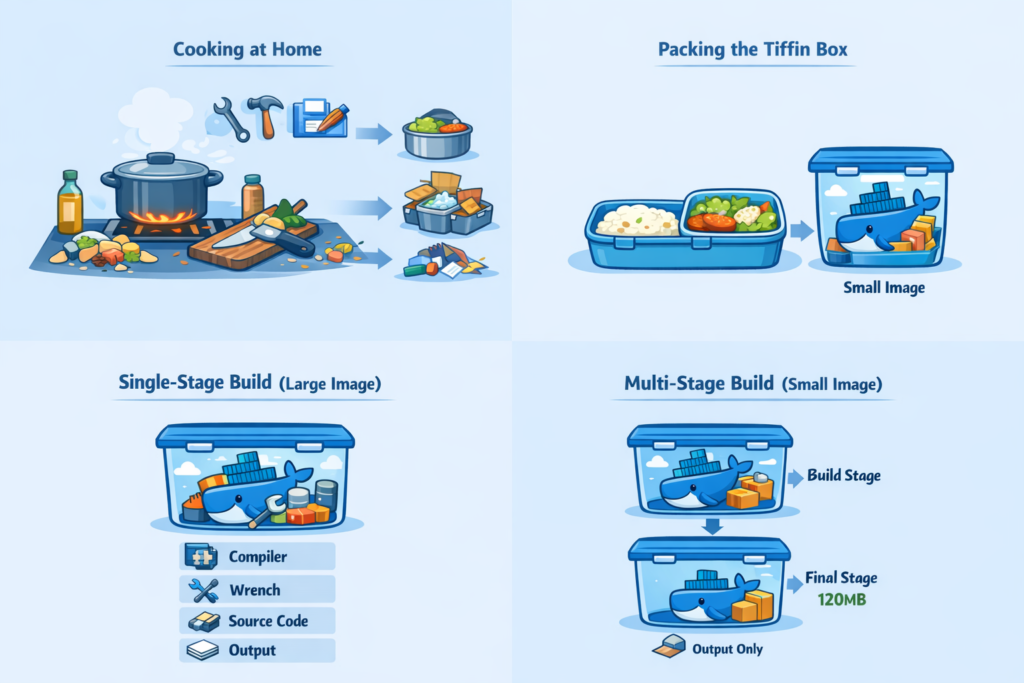
Think about how you prepare food for the office. At home, while cooking, you need a gas stove, heavy utensils, knives, and you generate waste (peels, packaging).
But when you pack your tiffin box, you carry only the cooked food. You don’t carry the stove, the knife, or the garbage to the office.
👉 A Docker image should be like a tiffin box, not the entire kitchen.
1. The “Big Win”: Multi-Stage Builds
Multi-stage builds allow you to separate the “Cooking” (Build) from the “Packing” (Runtime).
❌ The “Single-Stage” Mistake
This keeps the build tools, source code, and compilers in the final image.
Dockerfile
FROM node:18
WORKDIR /app
COPY . .
RUN npm install && npm run build
CMD ["node", "dist/index.js"]
# Result: ~900MB (This is carrying the stove in your tiffin box!)
✅ The Multi-Stage Best Practice
You use a heavy image to build the app, then copy only the production-ready files into a tiny “runtime” image.
Dockerfile
# Stage 1: The Kitchen (Build)
FROM node:18 AS builder
WORKDIR /app
COPY . .
RUN npm install && npm run build

# Stage 2: The Tiffin Box (Runtime)
FROM node:18-alpine
WORKDIR /app
COPY --from=builder /app/dist ./dist
CMD ["node", "dist/index.js"]
# Result: ~120MB
2. Choose Your Base Image Wisely
The foundation of your image determines its starting weight. Always choose the smallest image that supports your needs.
| Base Image | Typical Size | Note |
| node:18 | ~900 MB | Full Debian-based image. |
| node:18-slim | ~200 MB | Minimal Debian, no extra utilities. |
| node:18-alpine | ~120 MB | Uses Alpine Linux (very small, but uses musl). |
| distroless | ~50 MB | No shell, no package manager. The ultimate “tiffin.” |
3. Clean Your Layers (and Do It in One Go)
Each RUN, COPY, and ADD instruction creates a layer. If you create a file in one layer and delete it in the next, it still exists in the image’s history.
- Bad: Three layers, file remains in history.Dockerfile
RUN apt-get update RUN apt-get install -y curl RUN rm -rf /var/lib/apt/lists/* - Good: One layer, file is deleted before the layer is finalized.Dockerfile
RUN apt-get update && apt-get install -y \ --no-install-recommends curl \ && rm -rf /var/lib/apt/lists/*(Note: Using--no-install-recommendsprevents APT from installing “suggested” packages you don’t need.)
4. Use .dockerignore
Don’t let your “kitchen scraps” get into the box. A .dockerignore file prevents bulky folders (like .git or node_modules) from being sent to the Docker daemon.
Example .dockerignore:
Plaintext
.git
node_modules
*.log
Dockerfile
.env
5. Advanced Power Moves
For teams that need maximum optimization:
- Audit with
dive: Use thedivetool to inspect your image layer-by-layer. It will show you exactly which files are taking up space. - Static Binaries: If you use Go or Rust, compile your app into a single static binary and use a
scratch(empty) base image. This can result in images under 10MB. - Experimental Squashing: Use
docker build --squashto collapse all your layers into one, removing all historical “ghost” data.
Summary Checklist
- [ ] Is it a Multi-Stage build?
- [ ] Did I use an Alpine or Slim base?
- [ ] Are my
RUNcommands chained (&&)? - [ ] Is there a .dockerignore file?
- [ ] Did I use –no-install-recommends?
Final Thought: Build heavy, ship light. By keeping your “kitchen tools” out of your “tiffin box,” you ensure your containers are faster, cheaper, and more secure.
Leave a Reply